
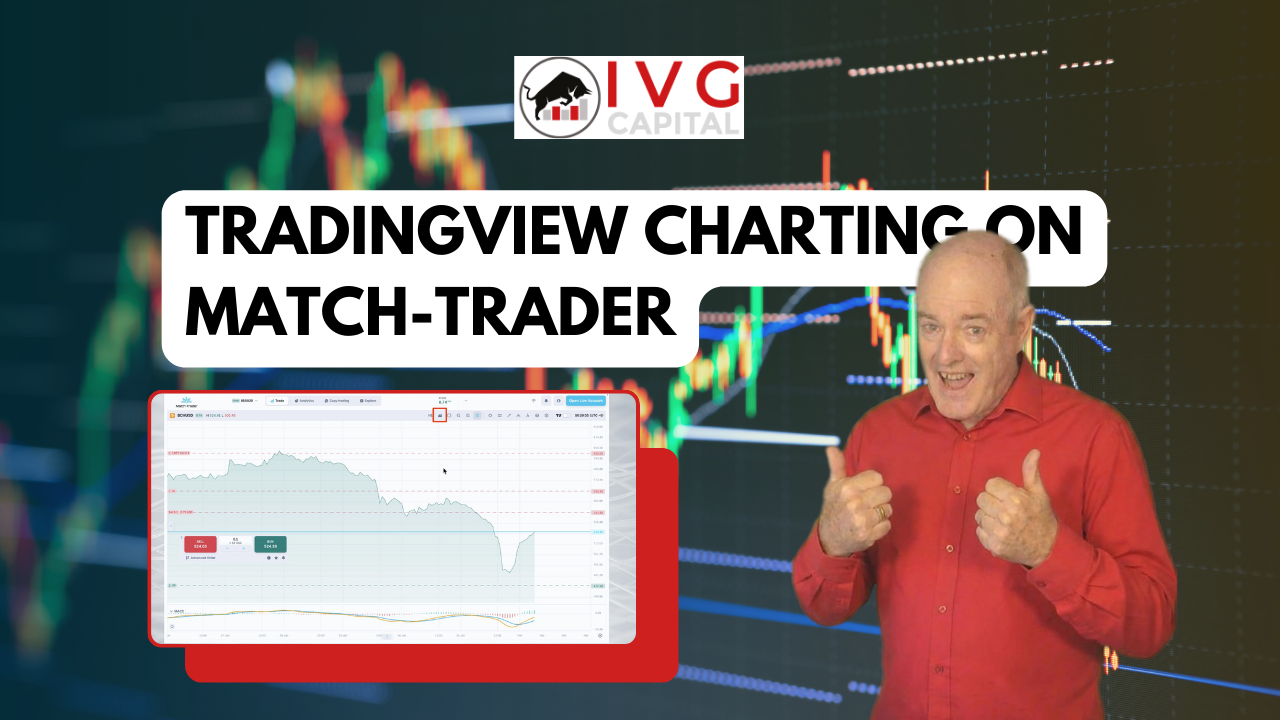
Introduction to Match-Trader TradingView Charts
Match-Trader is a modern all-in-one platform designed for forex and CFD trading, offering intuitive navigation and powerful charting tools for traders.
One of the most powerful features of Match-Trader is its integration with TradingView, one of the most comprehensive charting systems in the trading industry.
In this guide, we explore how to access TradingView charts inside Match-Trader and how to use the platform’s basic charting configuration tools to improve your technical analysis workflow.
Watch the Full Video Tutorial
Watch the complete walkthrough of Match-Trader TradingView charting features below.
How to Access TradingView Charts in Match-Trader
If you watched the previous video on basic Match-Trader charting, you already know the platform’s standard chart interface.
To switch to TradingView charts:
-
Click the TradingView toggle switch inside the platform.
-
The chart will switch to the TradingView interface.
-
The rest of the Match-Trader interface remains available, including:
-
Market Watch
-
Positions window
-
Navigation sliders
-
Full screen and minimize options
-
This allows traders to combine advanced charting tools with Match-Trader’s trading functionality.
Navigating TradingView Charts
TradingView charts inside Match-Trader offer multiple navigation tools.
You can:
-
Zoom using navigation buttons
-
Use the mouse wheel to zoom in and out
-
Reset chart positioning when needed
If multiple chart panes are open, you can:
-
Move panes to the top or bottom
-
Hide panes
-
Expand a pane to full screen
These features help traders organize their workspace efficiently.
Customizing Chart Appearance
Inside Chart Settings, Go to Symbol, traders can adjust chart visuals to match their preferences.
You can customize:
-
Candle body colors
-
Candle borders
-
Candle wicks
-
Line chart settings
Some traders prefer candles calculated from the previous close, which provides a cleaner view during strong trends.
You can also adjust:
-
Price line color
-
Price line thickness
-
Daily high and low display
Adjusting Price Precision and Timezone
Match-Trader allows traders to customize chart details to match their trading environment.
Settings include:
-
Adjusting price precision
-
Changing the chart timezone
-
Formatting date and time displays
These adjustments are useful when trading across different global markets.
Status Line and Chart Display Settings
Under Status Line settings, traders can control what data appears at the top of the chart.
Options include displaying:
-
OHLC values (Open, High, Low, Close)
-
Indicator values
-
Object information
-
Chart background adjustments for readability
This helps traders keep charts clean while still viewing important information.
Advanced Price Scale Features
TradingView offers powerful Y-axis price scale settings, including:
-
Displaying the symbol name
-
Showing the last traded price
-
Percentage price change
-
Daily high and low
-
Indicator values
-
Countdown to the current candle close
These features help traders quickly understand market momentum and volatility.
Chart Scaling and Zoom Options
Match-Trader allows flexible chart scaling.
You can:
-
Compress the chart by dragging the price axis
-
Activate Lock Price to Bar Ratio
-
Zoom both price and time axes simultaneously
These tools help traders analyze both short-term price movements and long-term trends.
Canvas and Background Customization
Under the Canvas settings, traders can modify chart visuals further.
You can adjust:
-
Background colors
-
Grid lines
-
Session break markers
-
Chart borders
A watermark can also be added to display the symbol and timeframe directly on the chart.
Saving Chart Templates
Once your chart configuration is set, you can save it as a template.
Benefits of templates include:
-
Quick chart setup for future sessions
-
Synchronization across devices
-
Access to your templates even when logging in from a different browser
This saves time and ensures consistent chart analysis across trading sessions.
Changing Symbols and Timeframes
TradingView charts make it easy to switch between instruments.
Traders can:
-
Change price display types (candles, line charts, etc.)
-
Adjust time intervals
-
Monitor multiple instruments with ease
Match-Trader also offers access to a wide range of technical indicators and drawing tools, which will be explored in future tutorials.
Comparing Multiple Symbols
TradingView’s Compare Symbols feature allows traders to overlay different markets on the same chart.
To compare assets:
-
Click the Compare Symbols icon
-
Add additional instruments
-
Select New Price Scale
This allows both symbols to appear on the chart with separate price scales.
By compressing and expanding the charts, traders can analyze correlations and divergences between assets.
Using the Ruler Tool
The Ruler tool is helpful for measuring market movements.
It measures:
-
Percentage price change
-
Number of candles or bars
-
Elapsed time
-
Price differences
-
Point movement
Click anywhere on the chart to hide the measurement display.
Start Your Trading Journey with Match-Trader
With the integration of TradingView charts, Match-Trader provides traders with powerful tools for technical analysis, chart customization, and market comparison.
By mastering these basic charting features, traders can better understand price movements and develop more effective trading strategies.
Stay tuned for more videos in the Match-Trader tutorial series, where we will explore indicators, drawing tools, and advanced trading techniques.
Risk Disclaimer
CFDs and FX are leveraged products and trading them involves significant risk. Your capital may be at risk.